A hybrid CMS and CRM for art galleries, artists, art foundations and institutions, biennales and museums. All of it is built and working today, and each part below is a feature in its own right.
The CMS: the page designer, and the public site it publishes.
The CMS side
Publish a website that looks like your gallery.
Content management for everything visitors see.
Page designer with blocks, live widgets and starter templates.
Online viewing rooms, a header menu you control and page settings.
Search-engine fields, share buttons and redirects for old URLs.
The CRM: the Enquiries inbox, and newsletter integration.
The CRM side
Know the people behind the visits, and reach them.
Relationship management that lives next to your content, not in a separate tool.
Every enquiry lands in one inbox, with the artist and work recorded.
Artists, works, shows and viewing rooms are linked both ways.
Visitor interest in analytics: Enquire, View in Room, zoom, share and download.
Newsletter and mailer integrations to reach your audience.
The artwork form.
Artworks
Every field a gallery needs.
One form holds the facts about a work, so records stay complete and consistent.
Title, year, material, type and edition.
Availability and price.
Dimensions in cm and inches, and orientation.
Rich description, images and video.
Flags for featured, homepage and new arrival.
An artist record.
Artists
Biographies, CVs and a full record.
Each artist has a page in the admin that gathers everything about them.
Rich biography and CV, with the CV also available as a PDF.
Photo and videos.
A “represented” flag.
Works shown in rows, with exhibition, art fair and publication timelines.
An exhibition record.
Exhibitions · Art fairs · Publications · Events
The fields each one actually needs.
Shows, fairs, books and events are first-class records, not posts with custom fields.
Exhibitions, art fairs, publications and events, each with its own form.
Covers and installation shots.
Dates and venue, with a text for each.
Links, and the delete warning.
Linked records
Linked both ways.
Open an artist and see their artworks, exhibitions, art fairs, publications and viewing rooms. Make a link from either side.
Links show up on both records, with nothing to copy.
Deleting something that is linked shows a warning first.
Deleting only unlinks: your other records stay safe.
The artworks list.
Search and filters
Find anything as you type.
Every list is searchable, filterable and sortable, so a large collection stays easy to handle.
Search as you type.
Filters and sorting on every list.
Thumbnails, status and flags at a glance.
The dashboard.
Dashboard
See what needs attention.
The dashboard shows your totals and quietly points out what is unfinished.
Totals for artists, artworks, exhibitions and more.
A setup checklist.
A “Needs attention” list: drafts, artists with no CV, works with no artist linked.
The Media Library pop-up.
Media Library
Every image, PDF and video, in one place.
Files are stored once and picked from a pop-up wherever they are needed.
Pick or upload from a pop-up wherever a picture is needed.
Grouped by what each file belongs to.
Filter by portrait or landscape.
Recently used files are easy to find again.
Files are resized automatically.
The page designer.
Page designer
Drag, drop and publish.
Build any page from blocks, ready-made sections and starter templates.
Headings, text, images, buttons, columns and video.
Ready-made sections and starter templates.
Desktop and mobile preview as you work.
A live widget.
Live content widgets
Content that updates itself.
Drop in a widget and it stays in step with your collection.
Show artworks, artists, exhibitions, art fairs, publications or viewing rooms.
As a single item, carousel, slideshow or grid.
They update automatically when your content changes.
Version history and the preview link.
Drafts and previews
Work safely, share early.
Nothing goes live until you publish, and earlier versions are never lost.
Draft or publish, with autosave.
Version history.
A private preview link to share a draft with anyone.
A viewing room.
Online viewing rooms
Curated rooms that stay in sync.
Viewing rooms are built in the page designer, with artwork widgets drawn from the collection.
Built with the same blocks and widgets as any page.
Artworks stay in sync with the collection.
Linked to the artists in them.
An artwork page.
Artwork page
A framed page for every work.
Each work is shown gallery-style, with room around it and a very close zoom on the original image.
Gallery-style framing.
Very close zoom on the original image.
Buttons for Zoom in, View in Room and Enquire.
View in Room.
View in Room
See it on the wall, at true scale.
Visitors see an artwork on a photo of a wall at its real size.
True scale on a wall photo.
Smooth zoom and pan.
The wall photo is your own, set in Settings.
A slideshow.
Slideshows
Full screen, with captions.
Present an exhibition, an art fair or an artist’s works one at a time.
Full-screen slideshows with captions.
For exhibitions, art fairs and an artist’s works.
Arrows and a counter, on any screen.
The homepage slider.
Homepage slider
Choose the pictures, the motion and the crop.
The first thing visitors see, set up exactly how you want it.
Choose or upload the pictures.
Fade, fade with slow zoom, or slide.
Timing, arrows and dots.
A focal point for each picture, so wide images crop well on phones.
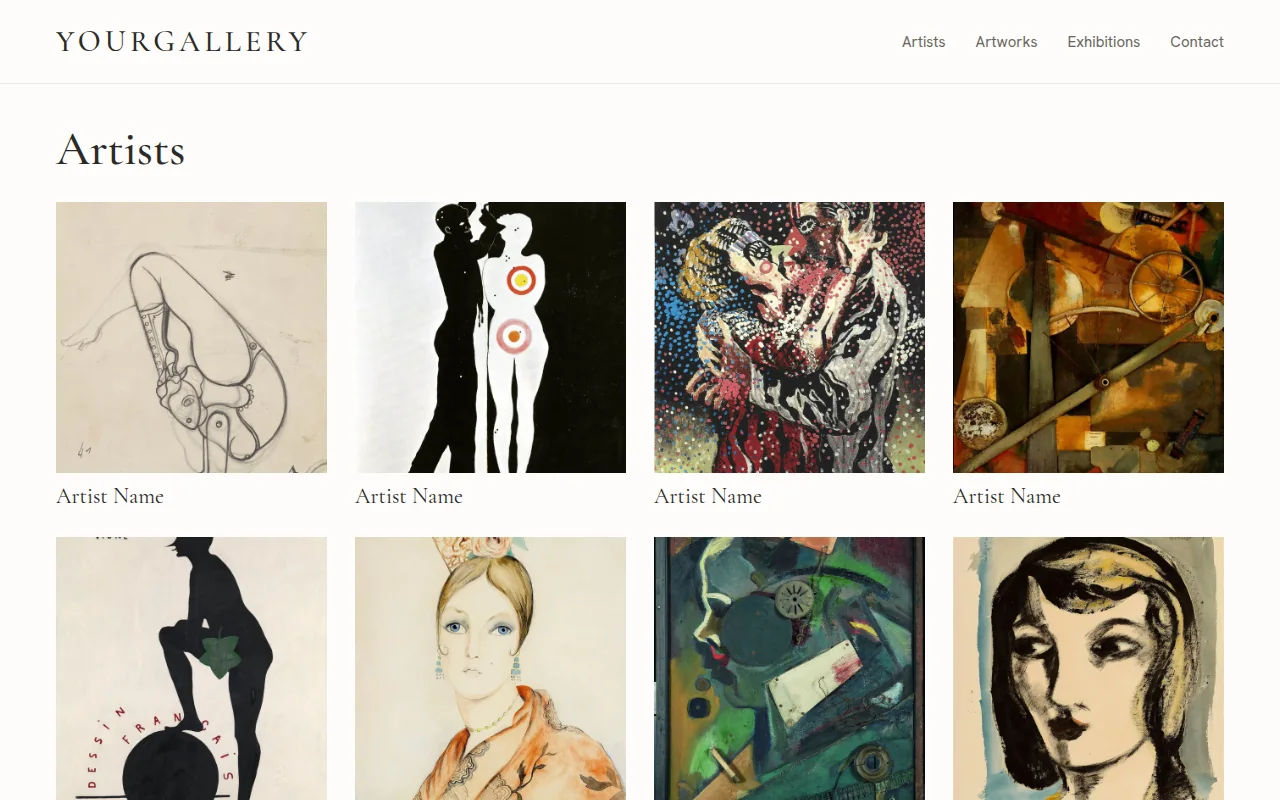
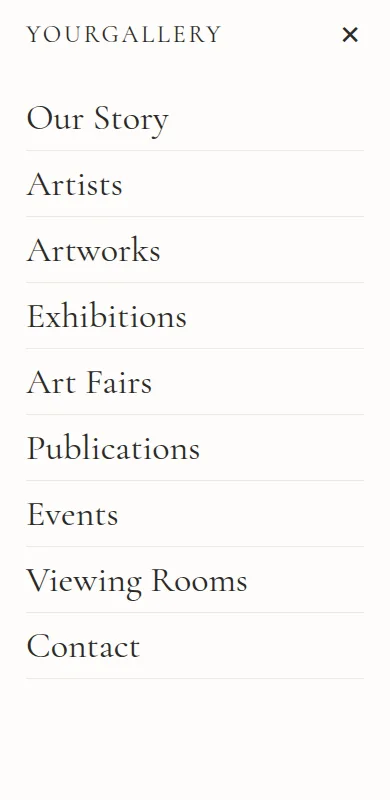
A grid on desktop, and the phone menu.
Grids and phones
Clean on every screen.
Images fade up gently as visitors scroll, in tidy grids that become a single column on a phone.
Clean grid layouts.
Images rise and fade in as visitors scroll.
A phone-friendly full-screen menu.
Share options.
Share buttons
Let visitors pass work on.
Choose the channels once, and they appear across the site.
Facebook, X, Pinterest, WhatsApp, LinkedIn, e-mail and copy link.
Chosen in Settings.
On artworks, artists, exhibitions, art fairs, publications, events, viewing rooms and pages.
Search and sharing settings.
Search engines
Be found, and keep old links alive.
Every item can carry its own title, description and share image.
Page titles and descriptions for every item.
A social-card image for each.
Redirects for old URLs.
The Enquire form, and the Enquiries inbox.
Enquiries
One button from interest to inbox.
The Enquire button opens a short form, and the message lands in your Enquiries inbox.
A short form on every work.
The artist and work are recorded with each message.
Mark enquiries as new or handled.
Newsletter integration.
Newsletter integration
Connect your newsletter service.
Grow your mailing list from your own website, and send news through the service you already use.
Connect your newsletter service in Settings.
Add a sign-up form to any page with a block in the page designer.
New subscribers go straight to your list.
Mailer integration.
Mailer integration
Send your site’s e-mail through your own mailer.
Choose the sender, and connect the mail service you trust.
Connect your mailer service, and set the sender name and address.
Send a test message to check it works.
Use it for enquiry messages and scheduled reports.
Gallery Info.
Gallery details
Your name, logo and contact details.
Set them once, and they appear where they belong.
Logo, name and tagline.
Address and contact details.
A default social-card image.
The header menu.
Header menu
Arrange the menu yourself.
Reorder, rename or hide anything, and add your own links.
Drag to order.
Rename, or hide an item.
Add pages and outside links.
Website settings.
Layout and wall photo
Widths, spacing and your own wall.
Tune the look of every page, and give View in Room your real wall.
Page widths and spacing.
The wall photo used by View in Room.
Team users.
Team users
Give your team their own logins.
Roles decide who can change what.
A login for each person.
Roles and login protection.
Added and managed in Settings.
Analytics, shown with sample data.
Analytics overview
Cookieless and anonymous.
No consent banner is needed, and no personal data is kept.
Page views and the most-viewed works, artists and shows.
Visitor interest: Enquire, View in Room, zoom, share and download.
Sources, devices and countries.
Busiest times, journeys through the site and a heat map.
Reports.
Reports
Take the numbers with you.
Share results with colleagues or artists in the format they use.
Excel and PDF reports.
An optional scheduled summary by e-mail.
A Test mode to preview everything with demo data.
Roles and login
People sign in with their own login, and roles decide what they can change.
Clean text
Page text is cleaned before it is saved.
Confirm before delete
Anything linked shows a warning first and is only unlinked.
Draft and publish
Nothing goes live until you publish, and version history keeps earlier versions.
Fewer moving parts
No pile of add-ons to patch, and far less that can be attacked.
A migration report, shown with sample numbers.
Migration
Migrate out of WordPress and other platforms.
You don’t have to start from scratch.
Bring your content, images and relationships across from WordPress or another platform.